
Moonitor is a native-feeling Mac app for tracking what you hold in crypto. It runs on macOS 12 and later, on Apple Silicon and Intel, and it keeps every figure on your own Mac.
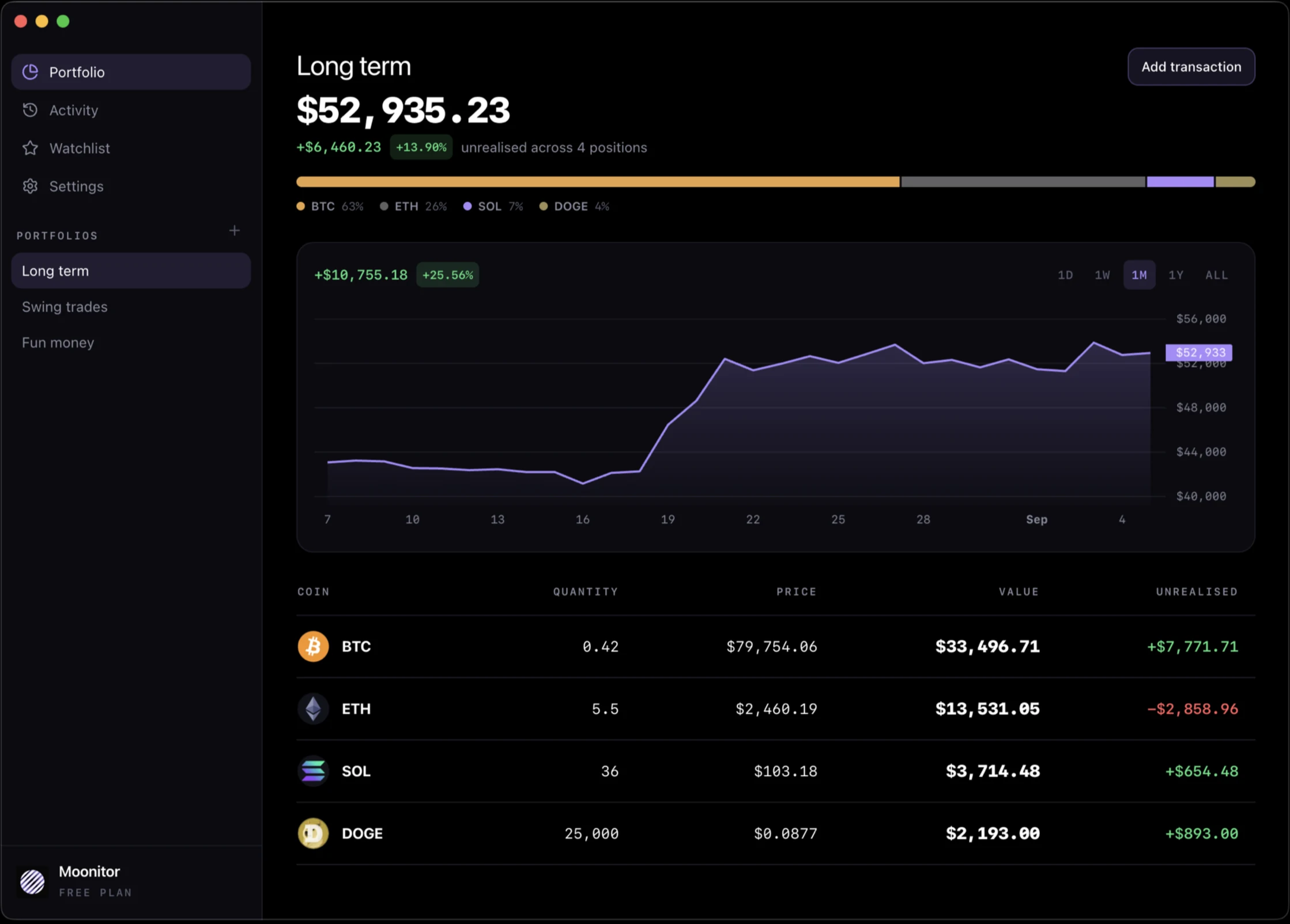
This page covers the Mac specifically: the three places to get it, what differs between them, and how it works alongside the iPhone app.
Three ways to get it, and how they differ
Moonitor for Mac is the same app whichever way you install it. What changes is how you unlock Pro and how it syncs.
The Mac App Store
The one to pick if you also use an iPhone.
- Pro is a purchase inside the app, and it is a Universal Purchase. If you already bought Pro on your iPhone or iPad, it is already unlocked here. Nothing to buy twice.
- It is the only version that can use iCloud sync, because the other two are not sandboxed for the store and cannot hold the entitlement. Turn iCloud on and your Mac and your iPhone keep each other up to date through your own private container.
- Updates arrive through the App Store like everything else.
Setapp
Pro is included with your Setapp subscription. There is nothing to buy inside the app, and no purchase screen, because that build genuinely does not contain one.
Setapp builds cannot use iCloud, for the reason above. Use folder sync instead, which is described below and works just as well.
A direct download from this site
A signed and notarised disk image, the same as the Windows and Linux builds.
Pro here is a licence key. You buy it on moonitor.io, we email you a key, and you paste it into Settings. The key is checked on your own Mac, offline. Moonitor never contacts a server to let you in, which matters for something sold on being private, and it means the app keeps working whatever happens to us.
Which one should you pick
- You have an iPhone: the Mac App Store, for iCloud sync and one purchase covering both.
- You already pay for Setapp: Setapp, and Pro costs you nothing extra.
- You want a plain download, or you also run Windows or Linux: the direct version, with a licence key.
You can switch later. Export a backup from one and import it into the other.
Keeping your Mac and your iPhone in step
Two options, and you only need one.
iCloud. App Store version only. Turn it on in Settings and both devices read and write the same private container. Nothing passes through a Moonitor server, because there isn't one.
A folder you already sync. Any version. Point Moonitor at a folder inside Dropbox, OneDrive, Google Drive or Syncthing, and every machine watching that folder stays up to date.
Folder sync handles the awkward case properly. If you edit on two machines at once, those services keep both copies under different names rather than picking a winner. Moonitor reads everything in the folder and merges it, so nothing is lost and nothing is silently overwritten.
If macOS refuses to read the folder you picked, that is Full Disk Access. Open System Settings, then Privacy & Security, then Full Disk Access, and turn Moonitor on.
Alerts, and what the Mac is good at
Set a price on any coin and Moonitor tells you the moment the market crosses it, with a normal macOS notification. Click it and the app comes forward on that coin.
Alerts on the Mac run while the app is open. Nothing sits on a server watching a market on your behalf, because nothing needs to: a Mac that stays on all day is the natural place for this. Leave the window on a second monitor and it does the job.
If you want alerts that arrive when the app is closed, Moonitor for iPhone has them, and the two share the same portfolio.
What is free and what Pro adds
Free covers live prices from all 16 exchanges, unlimited transactions, sync and backups, up to 5 coins, 1 portfolio, 10 watchlist markets and 1 alert.
Pro removes those limits: as many coins, portfolios, watchlist markets and alerts as you want. It is a one-time purchase, not a subscription.
If you bought Moonitor back when it was a paid app, Pro is yours already, on every platform you run it on.
